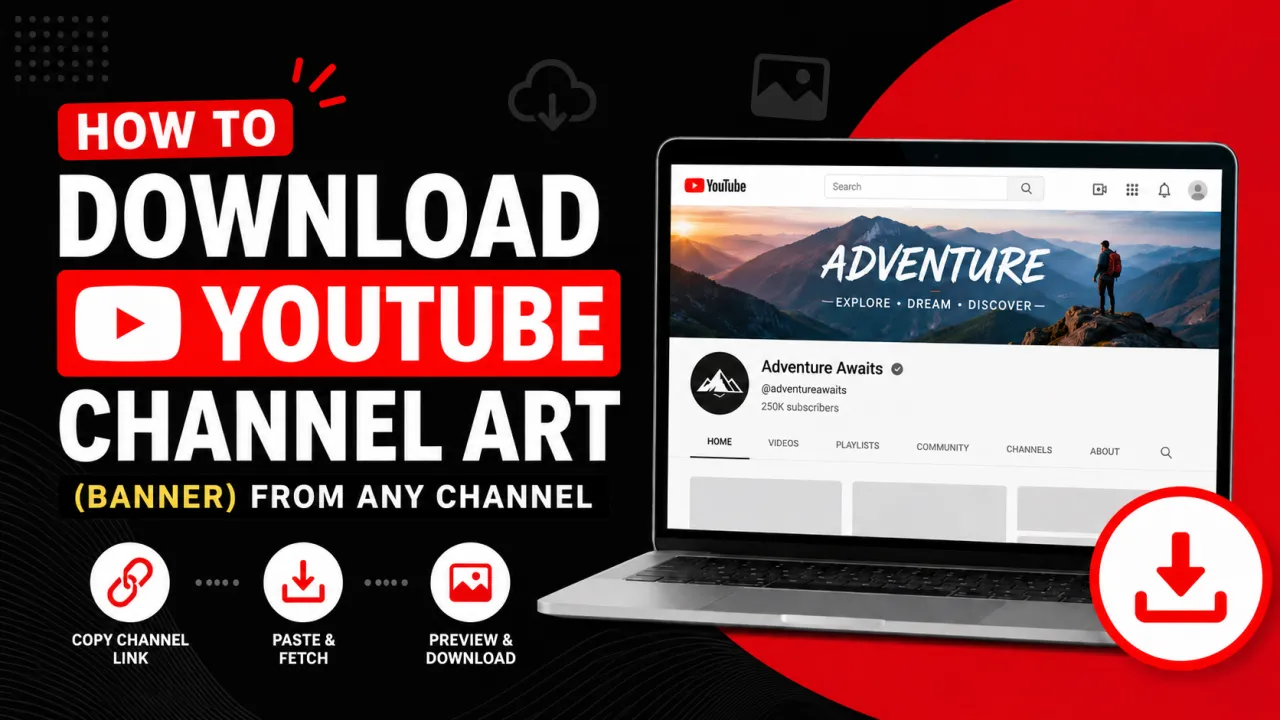
YouTube channel art also called the channel banner, YouTube banner, cover photo, or channel header image is the wide image at the top of every channel page, and YouTube serves it from a public CDN at up to 2560×1440 pixels. Because it is public, you can download any channel's banner for design research, inspiration, or to rebuild your own brand assets. This guide shows the fastest way to download YouTube channel art at full resolution, the channel URL formats that work, and what to do when a banner will not load.
The Fastest Way to Download YouTube Channel Art
The quickest method is a dedicated tool that reads the banner straight from YouTube's CDN and hands you the full-resolution file. Use the free YouTube Channel Art Downloader and follow these steps:
- Open the channel and copy its URL. Go to the YouTube channel whose art you want, then copy the address from your browser's address bar. Any current format works an
@handleURL, a/c/custom URL, a/channel/ID URL, or a legacy/user/URL. - Paste the URL into the downloader. Drop the link into the input field on the channel art downloader and press Get Channel Art. The tool resolves the channel and pulls its banner from YouTube's servers.
- Preview the banner. The full banner appears so you can confirm it is the right channel before saving anything.
- Download the file. Click Download Channel Art to save the banner as a JPG at the full 2560×1440 resolution that YouTube stores.
The whole process takes a few seconds and needs no account, no extension, and no payment. The downloaded file is the same image YouTube serves to TV displays, which is the largest version available.
Which Channel URL Formats Work
YouTube has used several channel URL formats over the years, and a good downloader accepts all of them. You do not need to convert one format to another paste whatever is in your address bar.
| Format | Example | Notes |
|---|---|---|
| Handle | youtube.com/@channelname | The current default for most channels |
| Custom | youtube.com/c/channelname | Older vanity URLs, still widely active |
| Channel ID | youtube.com/channel/UCxxxxxxxxxxxxxxxx | The permanent ID-based URL |
| Legacy user | youtube.com/user/username | From the original username system |
If you only have a video link, open the video, click the channel name under the player to land on the channel page, and copy that URL instead. The video URL itself does not point at the channel banner.
How to Download Channel Art on Mobile
The same tool works on a phone because it runs in the browser. On iPhone or Android, open the channel in the YouTube app, tap the share icon, and choose Copy link or open the channel in a mobile browser and copy the address. Paste that link into the channel art downloader, then tap Download. On iOS the image saves to your Photos app or Files; on Android it lands in your Downloads folder. There is no separate app to install.
What Resolution and Format You Get
YouTube recommends creators upload channel art at 2560×1440 pixels with a maximum file size of 6 MB, and it serves the banner back from its CDN as a JPG. The downloader returns that full 2560×1440 JPG the complete source image, not a cropped device view. Only a TV displays the full banner; desktop shows a wide central strip and mobile shows an even narrower one, but the file you download is always the whole 2560×1440 canvas. For the exact crop dimensions on each device and how to design around them, see the YouTube channel art size guide.
Why a Banner Sometimes Will Not Download
The most common reason a download fails is simple: the channel has not uploaded any channel art (its banner or cover photo). Newer or inactive channels often leave the banner blank, and there is nothing on the CDN to fetch. Verify the channel actually shows a banner on its page before trying again. A second cause is a mistyped or truncated URL copy the full address rather than retyping it. If the banner is visible on the channel page but still will not load, refresh and paste the URL again; a transient CDN hiccup usually clears on a retry.
Using a Downloaded Banner Responsibly
Channel banners are publicly visible, and downloading one for personal reference, competitor research, or design inspiration is generally treated as fair use. What is not acceptable is reusing another creator's banner to impersonate them, to claim their identity, or for commercial purposes without permission. Treat a downloaded banner as a reference, then build your own. When you are ready to make your own art, resize your design to the correct canvas with the thumbnail resizer's 2560×1440 preset, and review every YouTube image spec in one place in the YouTube image sizes guide.
Sources
Channel art dimensions and file-size limits in this guide follow YouTube's official creator documentation in YouTube Help Add channel art.
Frequently Asked Questions
Yes — YouTube channel art is served from a public CDN, so any channel that has uploaded a banner can have it downloaded. Channels with no banner set have nothing to download. Use the downloaded image for personal reference and design research, not to impersonate a creator or for commercial reuse without permission.
The downloader returns the banner at 2560x1440 pixels, the full resolution YouTube stores and serves to TV displays. The file is a JPG. Desktop and mobile only show a cropped strip of this image on YouTube, but the downloaded file is always the complete 2560x1440 canvas.
No — The YouTube Channel Art Downloader runs in your browser on desktop and mobile. There is no app, no browser extension, and no account required. You paste the channel URL, preview the banner, and download the JPG directly to your device.
That message almost always means the channel has not uploaded a banner, which is common for new or inactive channels. Open the channel page and confirm a banner is actually visible. If it is, re-copy the full channel URL and try again, since a truncated link or a transient CDN error can also cause it.
Open the channel in the YouTube app or a mobile browser, copy the channel link, paste it into the channel art downloader, and tap Download. On iPhone the image saves to Photos or Files; on Android it saves to your Downloads folder. The browser-based tool works the same on mobile as on desktop.
Yes — "Channel art", "channel banner", "YouTube banner", "cover photo", and "header image" all describe the same thing: the wide image across the top of a YouTube channel page. YouTube's recommended size for it is 2560x1440 pixels, and this tool downloads it at that full resolution whatever you call it.