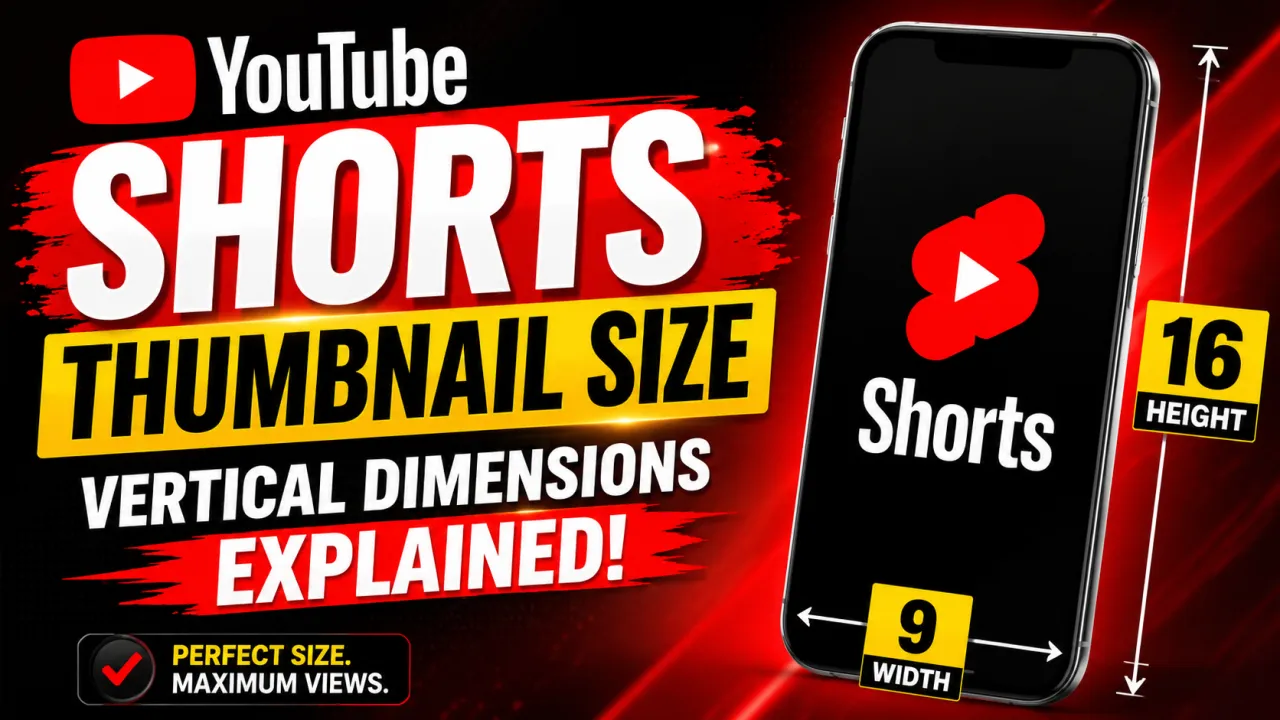
YouTube Shorts thumbnails use a 9:16 vertical aspect ratio the opposite of the 16:9 horizontal ratio used for standard YouTube videos. This difference matters for thumbnail design, template sizing, and how your video appears on the Shorts feed, the YouTube homepage, and search results.
The recommended upload size for a YouTube Shorts thumbnail is 1080×1920 pixels. This matches the vertical frame of a Shorts video and fills the available display space on the Shorts shelf and full-screen Shorts player without cropping or black bars. If you want to download an existing Shorts thumbnail for reference or research, the YTI Shorts thumbnail downloader retrieves it from YouTube's CDN at full resolution.
YouTube Shorts Thumbnail Dimensions: The 9:16 Vertical Standard
The 9:16 aspect ratio is the mobile portrait orientation. At 1080×1920 pixels, a Shorts thumbnail fills a vertical phone screen with no empty space this is why Shorts are designed and displayed in portrait mode.
For comparison, a standard YouTube video thumbnail uses a 16:9 horizontal ratio at 1280×720. A Shorts thumbnail at 1080×1920 is taller than it is wide the same orientation as the video itself.
| Format | Recommended dimensions | Aspect ratio | Orientation |
|---|---|---|---|
| Standard YouTube video | 1280×720 px | 16:9 | Horizontal (landscape) |
| YouTube Shorts | 1080×1920 px | 9:16 | Vertical (portrait) |
YouTube will accept a 16:9 thumbnail for a Shorts video, but it will display with black bars on the sides the letterbox effect when shown in the Shorts player. This makes the video look smaller and less polished than a correctly proportioned 9:16 thumbnail. Always use a vertical thumbnail for Shorts content.
The file size limit for Shorts thumbnails is the same as standard thumbnails: 2 MB maximum. Accepted formats are JPG, PNG, GIF, and BMP JPG is recommended for the same reasons as standard thumbnails. For the full format comparison, see the thumbnail format guide.
How to Upload a Custom Thumbnail for YouTube Shorts
Custom Shorts thumbnails are uploaded through YouTube Studio. The process requires that your account is verified with a phone number unverified accounts cannot upload custom thumbnails for any video type, including Shorts.
To set a custom thumbnail for a Shorts video:
- Open YouTube Studio in a desktop browser.
- Click Content in the left menu, then find your Shorts video.
- Click the video title or the pencil icon to open the details editor.
- In the details panel, scroll to the Thumbnail section.
- Click Upload thumbnail and select your 1080×1920 px JPG or PNG file.
- Click Save.
If you do not see the "Upload thumbnail" option, your account is not yet verified. Go to youtube.com/verify and complete phone verification. Verification is free and takes under two minutes.
YouTube Studio also offers a "Select frame" option, which lets you pick any frame from the Shorts video itself as the thumbnail. This is useful when the video already contains a frame that would work well as a thumbnail it avoids the need to design a separate image. However, a custom-designed thumbnail typically outperforms auto-selected frames for CTR because it can be composed and branded independently of the video's moment-to-moment content.
How YouTube Displays Shorts Thumbnails Across Surfaces
A Shorts thumbnail appears in four main contexts on the YouTube platform, each with different display rules:
Shorts shelf on the homepage: Thumbnails appear as vertical cards in a horizontal scrolling row. The full 9:16 frame is visible. Thumbnails that use the full vertical space and include a clear focal subject stand out more than thumbnails with elements concentrated in the centre of the horizontal 16:9 area.
Shorts feed (full-screen player): When a viewer swipes into the Shorts feed, the thumbnail is shown briefly before the video begins to play. A well-composed thumbnail with clear subject matter gives the viewer context before the first second of video plays. This matters for retention viewers who immediately understand what the video is about are more likely to stay.
Search results: Shorts appear in YouTube search results with vertical thumbnail tiles. The thumbnail is the primary visual signal at this stage. A clear, high-contrast thumbnail with recognisable subject matter performs better at this stage than a busy or low-contrast image.
Channel page: Shorts videos appear in the Shorts tab of your channel page with vertical thumbnail tiles. Consistent visual branding across your Shorts thumbnails makes the tab look cohesive and can encourage subscribers to click through the library.
Across all surfaces, the 9:16 vertical proportion is the consistent expectation. Designing for the full 1080×1920 canvas rather than centering content in the middle 1080×607 area (the 16:9 horizontal zone) makes better use of the available display space.
Downloading a YouTube Shorts Thumbnail
To download the thumbnail from any public YouTube Shorts video, use the YTI Shorts thumbnail downloader. Paste the Shorts URL and the tool retrieves the thumbnail from YouTube's CDN at the highest available resolution. This is useful for:
- Competitor research: Analysing which thumbnails the top-performing Shorts in your niche are using
- Reference libraries: Building a visual library of effective vertical thumbnail compositions
- A/B testing archival: Saving your current Shorts thumbnail before replacing it with a test version in YouTube Studio
- Cross-platform repurposing: Retrieving your own Shorts thumbnail to use in promotional materials
For general guidance on why and how to download thumbnails including legal and copyright context see the guide to YouTube thumbnail legality.
Frequently Asked Questions
The recommended YouTube Shorts thumbnail size is 1080×1920 pixels at a 9:16 vertical aspect ratio — this matches the full-screen portrait orientation of the Shorts player and ensures no cropping when viewers see your video in the Shorts feed. YouTube also accepts 1280×720 at 16:9 (the same spec as standard videos), but it gets center-cropped to 9:16 in the Shorts player, losing the left and right sides. Use 1080×1920 if Shorts-feed CTR is your priority; use 1280×720 if you want a single image that displays without cropping on Search results and your Channel page — keep important elements centered to survive the Shorts crop. Maximum file size is 2 MB. JPG is the recommended format.
YouTube will accept a 16:9 horizontal thumbnail for a Shorts video, but it will display with black bars on the left and right sides in the Shorts player and Shorts shelf. This makes the video appear smaller and less polished. Always design Shorts thumbnails at 9:16 (1080×1920 px) for best results across all surfaces.
Yes — If you do not upload a custom thumbnail, YouTube automatically selects a frame from the Shorts video as the thumbnail. YouTube Studio also provides a "Select frame" option to choose which frame is used. For better CTR, design and upload a custom 1080×1920 px thumbnail rather than relying on an auto-selected frame.
Custom thumbnail uploads require phone number verification on your YouTube account. If you do not see the "Upload thumbnail" option in YouTube Studio, go to youtube.com/verify and complete the verification process. This is a one-time step and verification is free.
An effective Shorts thumbnail uses the full 9:16 vertical canvas, places the primary subject clearly in the upper two-thirds of the frame (where the Shorts UI overlays controls at the bottom), uses high contrast text if text is included, and clearly communicates the video's subject matter in under one second of viewing. Avoid centering all content in the horizontal strip — the vertical space above and below is prime real estate unique to Shorts.
Paste the Shorts URL into the YTI Shorts thumbnail downloader and click download. The tool retrieves the thumbnail from YouTube's CDN at the highest available resolution. No account or extension is required. For a full step-by-step walkthrough, see the guide to downloading YouTube Shorts thumbnails.
All three platforms use 9:16 vertical orientation, but recommended pixel dimensions vary. YouTube Shorts recommends 1080×1920 px. TikTok recommends 1080×1920 px. Instagram Reels uses 1080×1920 px for video but Reels covers are often cropped to 1080×1350 px (4:5) in the profile grid. Design at 1080×1920 and your Shorts thumbnail will be correctly proportioned for all three.