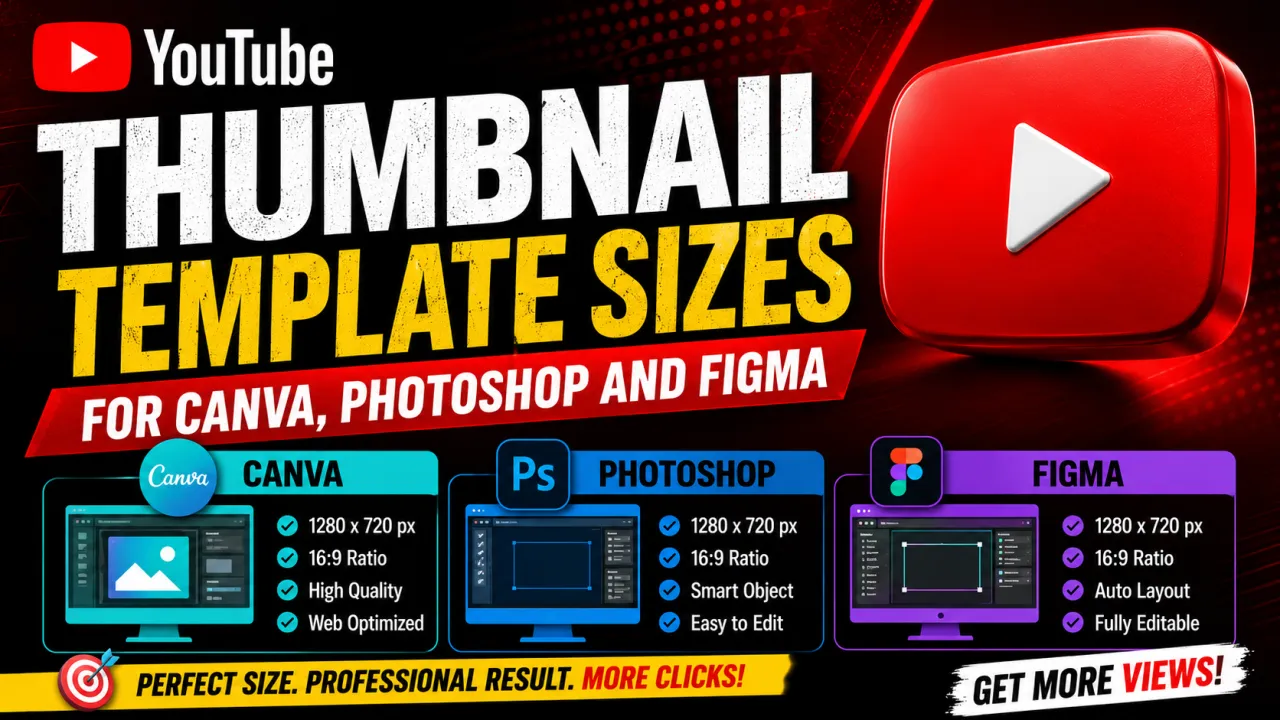
A YouTube thumbnail template is a pre-sized canvas in your design tool set to the correct dimensions for a custom thumbnail upload. The correct base template size is 1280×720 pixels at 16:9 aspect ratio. This guide covers the exact setup steps in Canva, Photoshop, and Figma, and the export settings that produce a YouTube-ready file.
The Correct Template Dimensions
- Width: 1280 pixels
- Height: 720 pixels
- Aspect ratio: 16:9
- Resolution: 72 DPI (screen resolution print-quality 300 DPI is unnecessary and produces larger files)
- Colour mode: RGB (not CMYK YouTube displays on screens, not print)
- Export format: JPG at 8590% quality
- Maximum file size: 2 MB
Setting Up a Thumbnail Template in Canva
- Go to canva.com and click Create a design.
- Select YouTube Thumbnail from the suggested templates Canva automatically sets the canvas to 1280×720 pixels.
- If you prefer to set dimensions manually: click Custom size, enter 1280 width and 720 height, select px as the unit, and click Create new design.
- Design your thumbnail. Use the safe zone concept: keep important content (faces, text, key visuals) at least 40 pixels from each edge to account for display cropping in some YouTube interface views.
- To export: click Share → Download, select JPG as the format, and download. If the file is above 2 MB (uncommon at 1280×720 in Canva), use TinyJPG to compress before uploading.
Setting Up a Thumbnail Template in Photoshop
- Go to File → New.
- Set Width to 1280 pixels, Height to 720 pixels, Resolution to 72 pixels/inch, Colour Mode to RGB Colour, 8 bit.
- Click Create.
- Save this as a Photoshop template (
.psd) or use File → Templates to save it for future use. - To export: File → Export → Export As. Select JPEG format. Set quality to 8090. Confirm the file size shown in the dialogue is under 2 MB. Click Export All.
Alternatively, use File → Save for Web (Legacy) and set format to JPEG, quality to 80. This gives you fine-grained control over file size.
Setting Up a Thumbnail Template in Figma
- In Figma, create a new file and add a Frame (
Fshortcut). - In the right panel, set the frame dimensions: Width 1280, Height 720.
- Name the frame "YouTube Thumbnail" and use it as your base template. Duplicate it for each new thumbnail design.
- To export: select the frame, go to the right panel → Export, click the + button, select JPG, set scale to 1x, and click Export.
Figma defaults to 2x scale for retina exports make sure you select 1x to export at exactly 1280×720 rather than 2560×1440, which would produce a file likely to exceed 2 MB.
Setting Up Safety Guides
YouTube displays thumbnails in various contexts where slight cropping occurs at the edges (especially on the YouTube TV and embedded player interfaces). A practical safety margin is to keep all critical content text, faces, key graphics within a central 1200×640 pixel safe zone, leaving 40 pixels of buffer on each side. In Photoshop and Figma, add guides at 40px from each edge. In Canva, this is handled visually when you work near the canvas edge.
To fit any of these template sizes, drop your image into the YouTube Thumbnail Resizer and export a clean 1280×720 file in seconds.
Frequently Asked Questions
No — designing at 1920×1080 does not improve quality. It produces a file roughly 2.25× larger than a 1280×720 design, making it more likely to exceed the 2 MB limit, and YouTube serves every thumbnail from its CDN at a maximum of 1280×720 regardless of how large you uploaded. Design at 1280×720.
72 DPI for screen use. DPI is relevant for print — YouTube displays thumbnails on screens where pixel dimensions are what matters, not DPI. A 1280×720 thumbnail at 72 DPI and one at 300 DPI have identical visual quality on a monitor; the 300 DPI version just has a larger file size for no benefit.
No — YouTube Shorts uses a 9:16 vertical aspect ratio. For Shorts, set your canvas to 720×1280 pixels (or 1080×1920 for full vertical HD). The 1280×720 template used for standard videos will display with black bars if applied to a Shorts video.