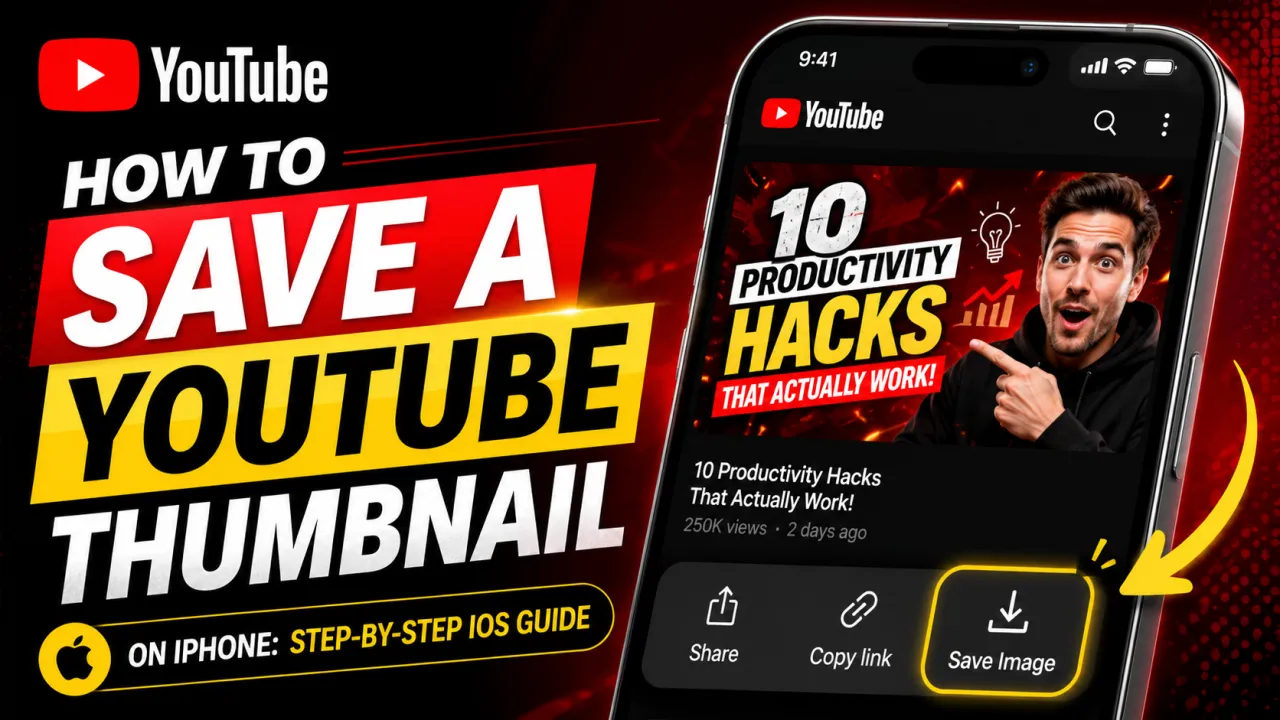
Saving a YouTube thumbnail on iPhone is not as straightforward as on an Android device or desktop. iOS restricts direct image saving from browser-based download links in ways that Android does not. The result is that many iPhone users tap a download button and nothing appears to happen, or a new tab opens with no obvious save option. This guide explains exactly how to save YouTube thumbnails to your iPhone's Camera Roll or Photos app, including the methods that work in both Safari and Chrome.
The Fastest Method: Safari Long-Press
The most reliable way to save a YouTube thumbnail on iPhone uses Safari and a long-press gesture. Follow these steps:
- Open Safari on your iPhone and go to youtubethumbnailimage.com.
- Copy the URL of the YouTube video whose thumbnail you want to download from the YouTube app (tap Share → Copy Link) or from Safari's address bar.
- Paste the video URL into the input field on the YTI homepage and tap Search.
- When the thumbnail images appear, tap on the resolution you want (HD 1280×720 is recommended).
- When the thumbnail image opens in a new tab, long-press the image (press and hold for one to two seconds).
- A menu appears with options including Add to Photos or Save to Photo Library. Tap it.
- The thumbnail is now saved to your iPhone's Photos app in the Camera Roll album.
This method works consistently in Safari on all current iOS versions (iOS 15 and later). If you are using Chrome or another browser on iPhone, the long-press menu may look different or not offer a save option in that case, switch to Safari for this process.
What to Do If the Long-Press Menu Does Not Appear
If you long-press the thumbnail image and no menu appears, try these fixes:
- Switch to Safari Chrome on iOS handles image saving differently from Safari. Open the YTI page in Safari specifically (go to youtubethumbnailimage.com in Safari).
- Check Photos app permission go to iPhone Settings → Safari → Photos and ensure it is set to Allow.
- Wait for the image to fully load long-pressing before the image has fully loaded may not trigger the menu. Wait until the image is completely visible, then long-press.
- Try a different HD or SD resolution on some older iPhone models, the HD 1280×720 thumbnail takes longer to load. Tap the HQ (480×360) or SD (640×480) option and long-press that image instead.
How to Save a YouTube Thumbnail to iPhone Using the Download Button
The YTI downloader provides a Download button alongside each thumbnail resolution. On iPhone in Safari:
- After the thumbnails appear, tap Download under your preferred resolution.
- A new tab opens showing the thumbnail image at full size.
- Long-press the image in the new tab and tap Add to Photos.
The Download button on iOS does not trigger a file save dialog the way it does on Android or desktop it opens the image in a new tab instead. The long-press save step is always required on iOS.
How to Find Your Saved Thumbnail in the Photos App
After saving a YouTube thumbnail on iPhone using the long-press method, find it in:
- Photos app → Recents the most recently saved images appear here first
- Photos app → Albums → Camera Roll all saved images, including thumbnails, appear in Camera Roll in chronological order
- Photos app → Albums → Screenshots only if you used a screenshot to capture the thumbnail (not recommended screenshot resolution is lower than a direct save)
How to Download a YouTube Thumbnail on iPhone Without an App
Many users search for a YouTube thumbnail downloader app for iPhone, but a dedicated app is not necessary. The YTI YouTube Thumbnail Downloader is a web-based tool that works in Safari on iPhone without installation, sign-up, or any app download. The complete process paste URL, search, long-press to save takes under 30 seconds.
Avoid installing third-party apps from the App Store that claim to download YouTube thumbnails. These apps typically do not offer any capability beyond what the YTI web tool provides, and some require account creation or display intrusive advertising.
Downloading YouTube Thumbnails on iPad
The process for saving a YouTube thumbnail on iPad is identical to iPhone: use Safari, paste the video URL into youtubethumbnailimage.com, tap the thumbnail to open it at full size, and long-press to save to Photos. The larger screen of the iPad means the HD 1280×720 thumbnail is especially worthwhile for design reference or presentation use.
Prefer your computer or want the highest-resolution copy? See how to download a YouTube thumbnail in HD on any device.
Frequently Asked Questions
iOS restricts direct image saving from browser download links by design. The solution is to use Safari (not Chrome), open the thumbnail image at full size in a new tab, and long-press the image to access the Add to Photos option. This method works on all iPhone models running iOS 15 or later.
No browser extension is needed. Open youtubethumbnailimage.com in Safari, paste the YouTube video URL, and long-press the thumbnail image to save it. The entire process takes under 30 seconds and requires no extension, account, or app installation.
Yes — Use the YouTube Shorts Thumbnail Downloader, paste the Shorts URL, and long-press the vertical thumbnail image in Safari to save it to Photos. The Shorts thumbnail is in 9:16 vertical format, which displays correctly in iPhone's Photos app.
If your saved thumbnail looks lower quality than the HD version shown on screen, check that you tapped the HD (1280×720) option before long-pressing. The MQ and HQ sizes are significantly smaller and will appear soft if upscaled. Also avoid using a screenshot to capture the thumbnail — a screenshot is the image as re-rendered and recompressed by the screen rather than the original CDN file, so it carries extra compression artefacts and colour shifts that the direct HD (1280×720) download avoids.
If you want to use the saved thumbnail as a custom thumbnail for your own YouTube video, resize it to 1280×720 using the YouTube Thumbnail Resizer first — it works on iPhone directly in Safari with no upload required.